Interfaces
owncoder has three interactive front ends and a non-interactive one-shot mode. They share the same agent, tools and sessions. Console commands agent and owncoder are the same entry point.
| Interface | Start command | Best for |
|---|---|---|
Full-screen TUI (textual) |
agent chat --ui textual |
Daily work in a terminal: tabs, token and context bars, permission prompts |
Text flow (simple) |
agent chat --ui simple |
Small terminals, SSH, copy-paste friendly output |
Browser (http) |
agent chat --ui http |
Side panels, phone access, voice input |
| Sidecar | agent chat --ui textual --http-sidecar |
Terminal UI plus a companion browser view |
| One-shot | agent run "<prompt>" |
Scripts and CI |
About the screenshots
All screenshots on this page come from a demo sandbox with a scripted fake model. The layout is real; the conversations are not.
Full-screen TUI (textual)
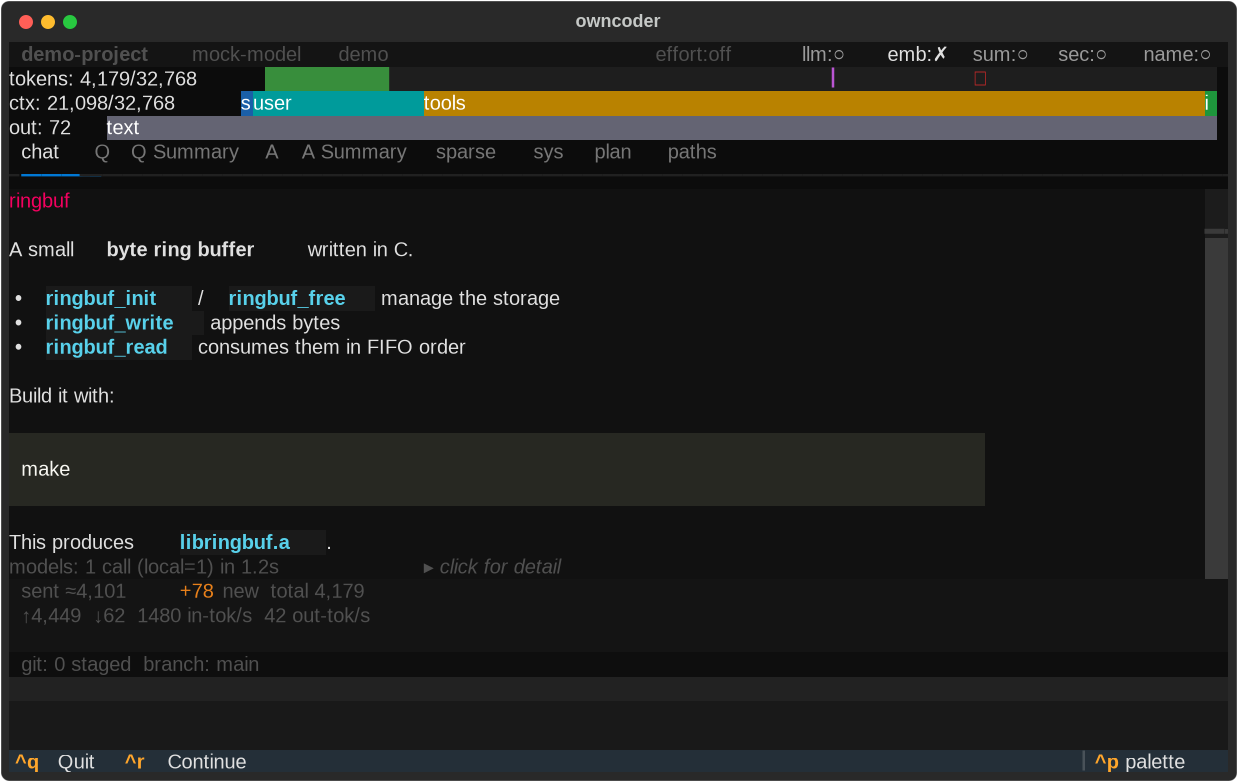
A tabbed terminal UI. Tabs are reachable with function keys:
| Key | Tab |
|---|---|
| F1 | chat |
| F2 / F3 | Q / Q Summary |
| F4 / F5 | A / A Summary |
| F6 | sparse |
| F7 | sys |
| F8 | plan |
| F9 | paths |
Token and context bars show how much of the window is used. Tool calls, plans and questions from the agent are rendered inline.
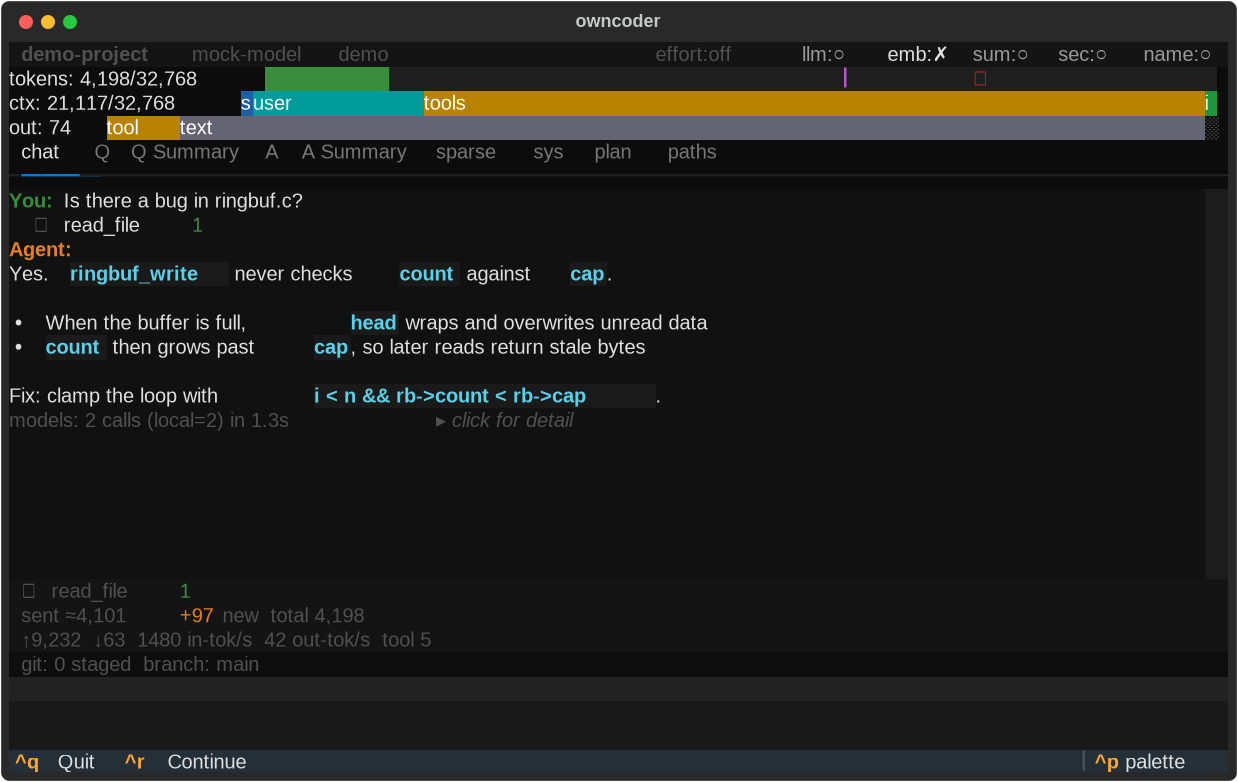
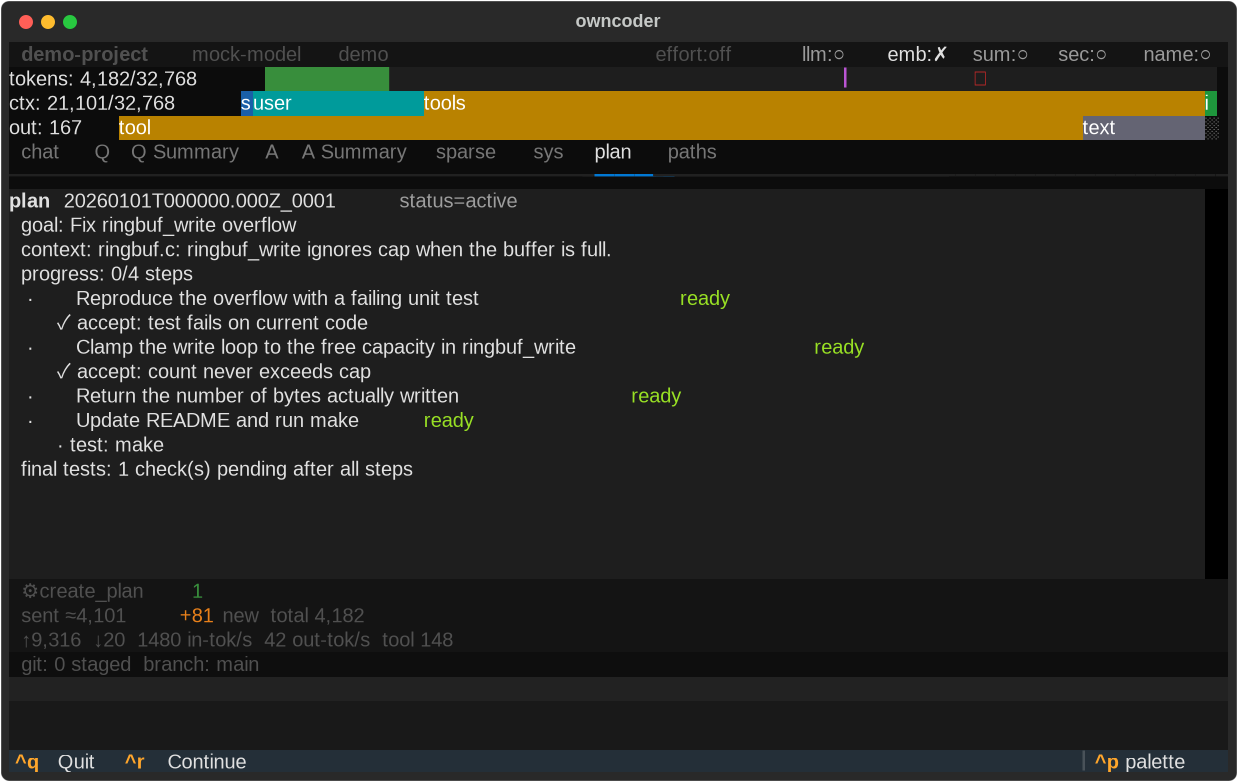
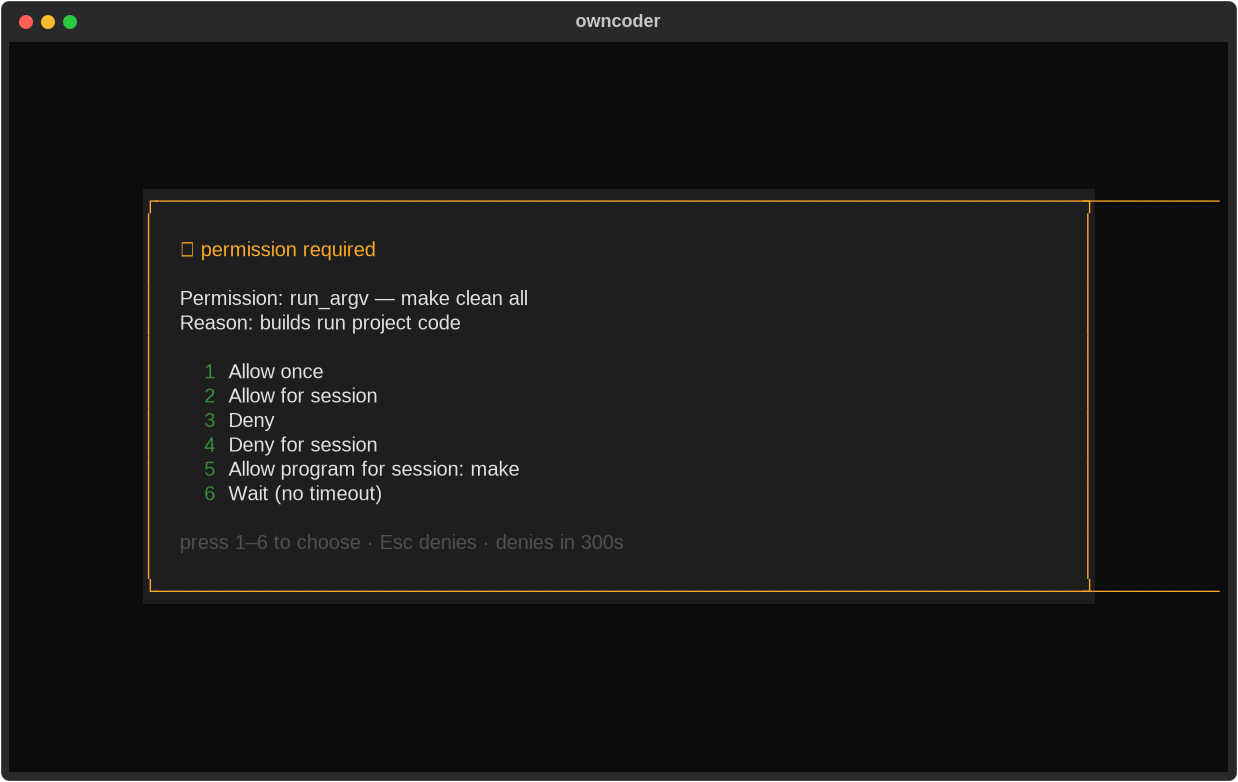
When a tool call needs your permission, the agent stops and asks; you answer in place.
Relevant [ui] keys: syntax_highlight, show_token_count, chat_wrap (wrap, nowrap, last used), round_summary.
Text flow (simple)
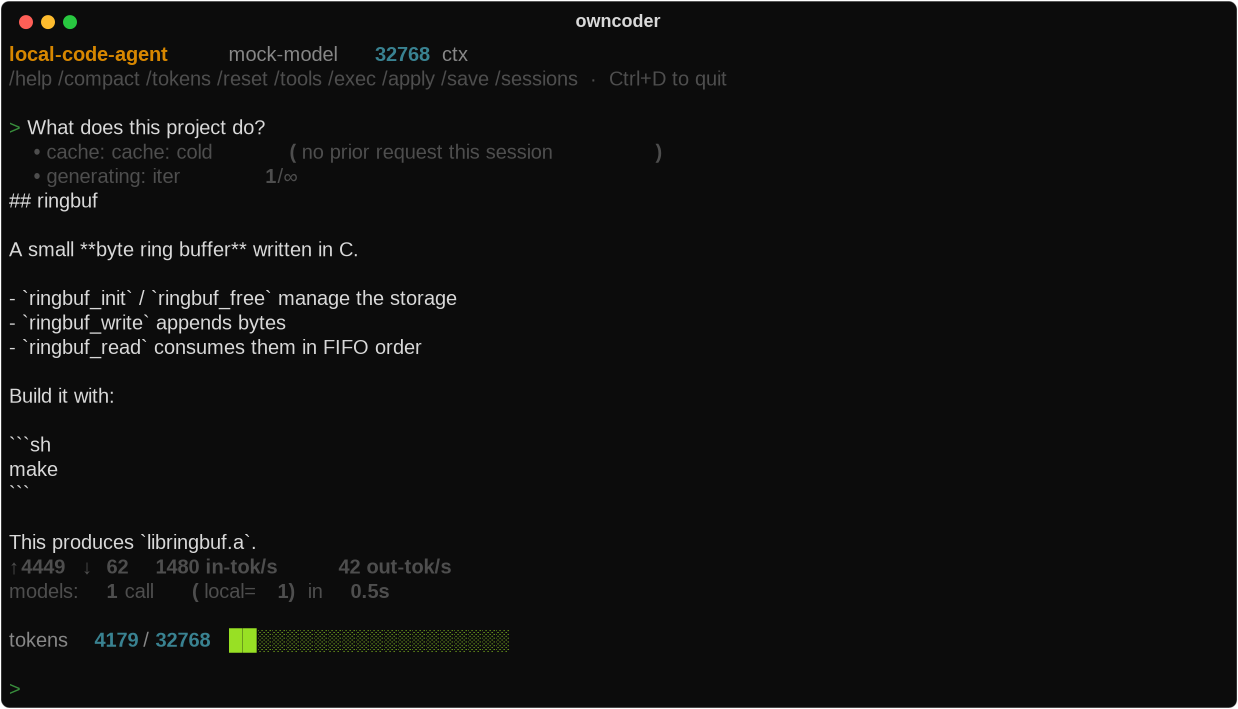
Flowing terminal output with slash commands (for example /bg for background jobs) and readline-style input history.
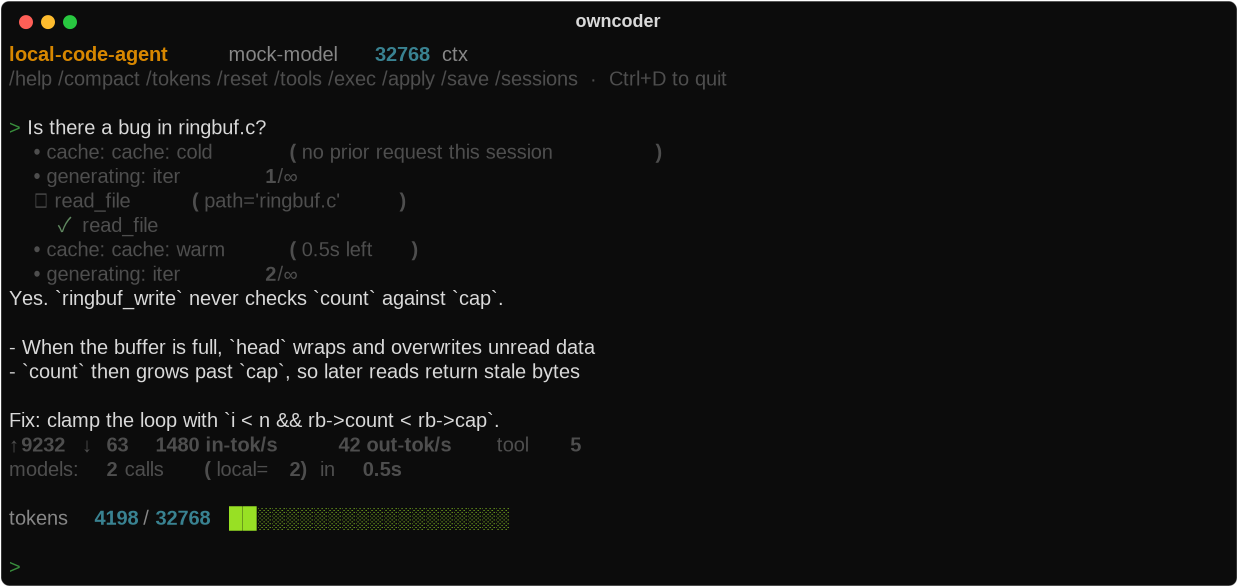
Browser (http)
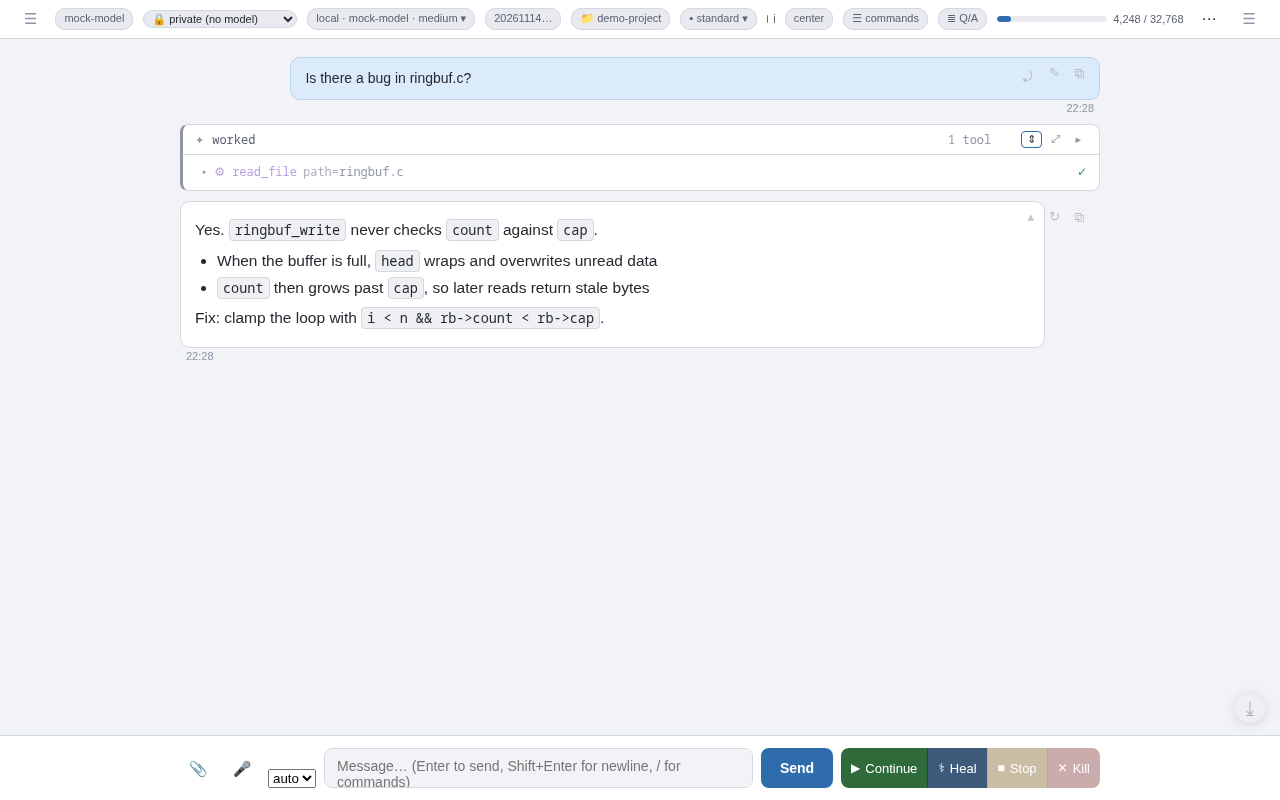
Desktop and phone layouts of the same single-page app:
| Desktop | Phone |
|---|---|
 |
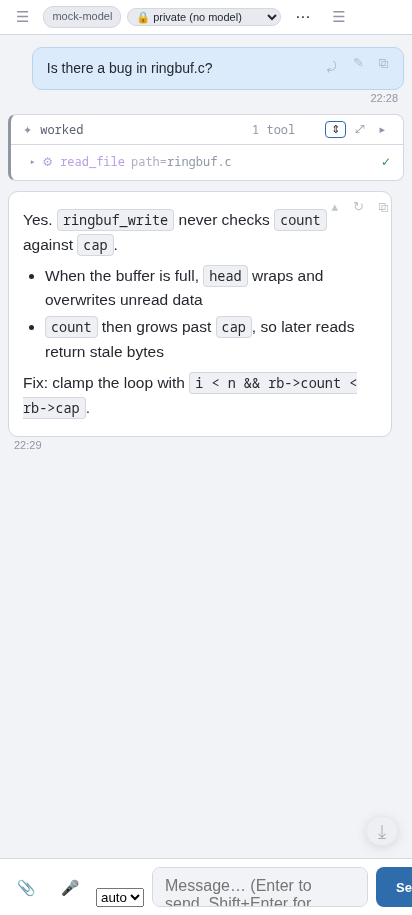 |
Side panels:
- Left: sessions, access paths, remote hosts, usb, plan, schedules, backlog.
- Right: models, session stats, LLM calls, context, memory, background jobs, git history.
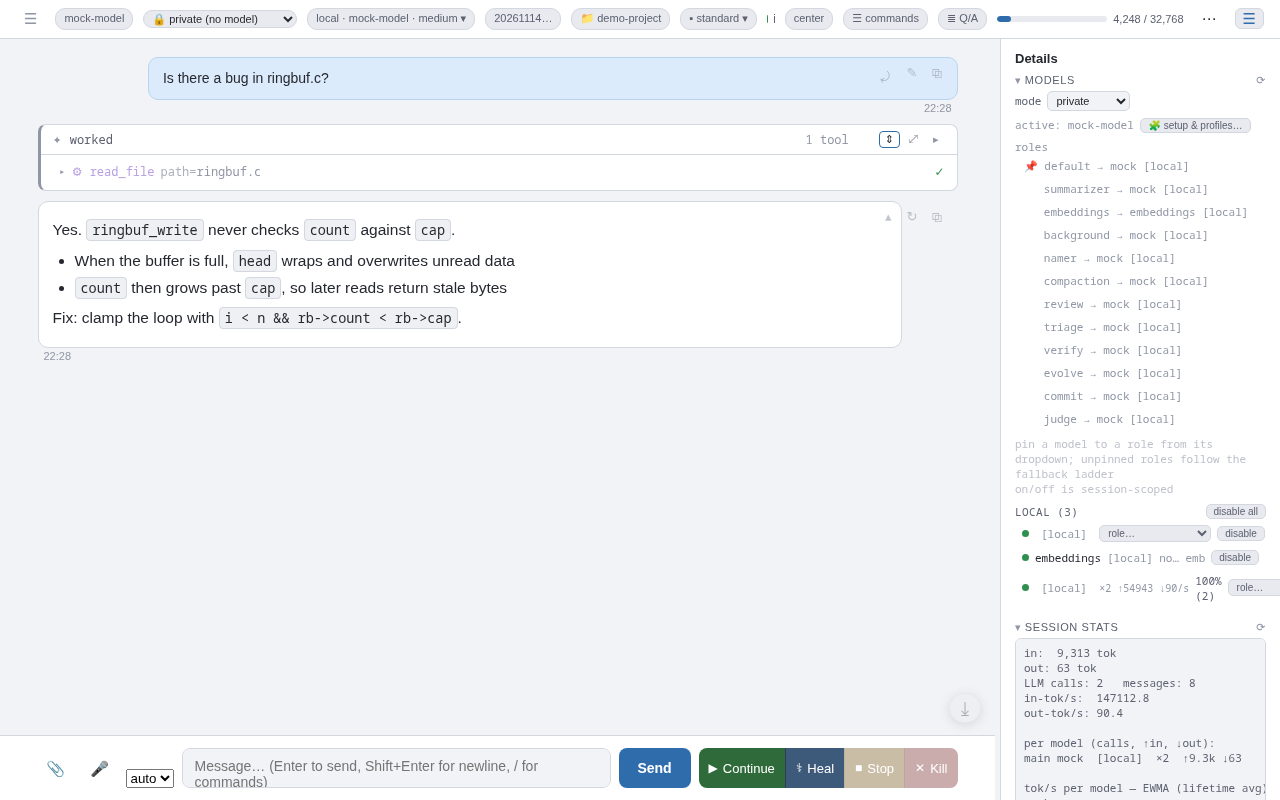
The microphone button records audio in the browser and posts it to the host, which transcribes it (see Relay & Android for the [speech] setup). Browsers only grant microphone access in a secure context: HTTPS or loopback.
On start the agent prints a URL with a per-start token, for example http://127.0.0.1:8180/?token=.... Open it to get in. Other browsers can ask to connect; the operator approves in the agent's terminal or an open tab. Manage approved browsers with agent http-clients (actions: list, revoke, clear, approve, deny).
[ui] keys:
[ui]
mode = "http"            # picker default only, see below
http_host = "127.0.0.1"  # default is "0.0.0.0" (all interfaces)
http_port = 8180         # walks forward up to +19 if busy
http_tls_auto = "lan"    # "lan" | "always" | "off"
# http_tls_cert = "/path/to/cert.pem"
# http_tls_key  = "/path/to/key.pem"
# allowed_hosts = ["192.0.2.10"]   # names you type in the browser URL bar
connect_approval = true
http_tls_auto = "lan" generates a self-signed certificate when the server is bound beyond loopback and no cert/key is configured; "always" does so on loopback too; "off" serves plain HTTP. allowed_hosts has the command-line equivalent agent chat --allow-host HOST (repeatable). --allow-any-host ([ui] http_allow_any_host) skips the Origin/Host check; the token or an approved browser is still required.
Security notes for the browser UI
- The server binds all interfaces by default. For local-only use set
http_host = "127.0.0.1". - The token URL is the credential. Anyone who has it can drive the agent; do not paste it into shared channels.
- Plain HTTP sends the token and your prompts unencrypted over the network. Use TLS when the UI is reachable from other machines.
Sidecar
A companion browser view that runs next to textual or simple. It mirrors the current turn and accepts chat input. Session switching, model management and stop controls stay in the terminal UI; use --ui http if you need them.
agent chat --ui textual --http-sidecar
or set http_sidecar = true under [ui]. The sidecar uses http_host and http_port and prints a ?token= URL at start. It serves plain HTTP.
One-shot: agent run
agent run "summarise the failing tests"
echo "explain src/main.py" | agent run
agent run --json "list TODO comments"
Without an argument the prompt is read from stdin. With --json the output is a JSON envelope and the exit code is 0 (done), 1 (error) or 2 (iteration or goal cap reached).
agent serve is something else: a browser for the RAG chunk index (--port, default 8765). It is not a chat UI.
How the mode is chosen
The first match wins:
agent chat --ui textual|simple|http- Environment variable
AGENT_UI_MODE - Saved choice in
.agent/ui_prefs.json - Interactive picker at startup (your answer is saved for next time)
[ui] mode in the config file only sets the picker's default; it does not skip the picker. There is no readline mode: simple is the plain-terminal option.